Overview
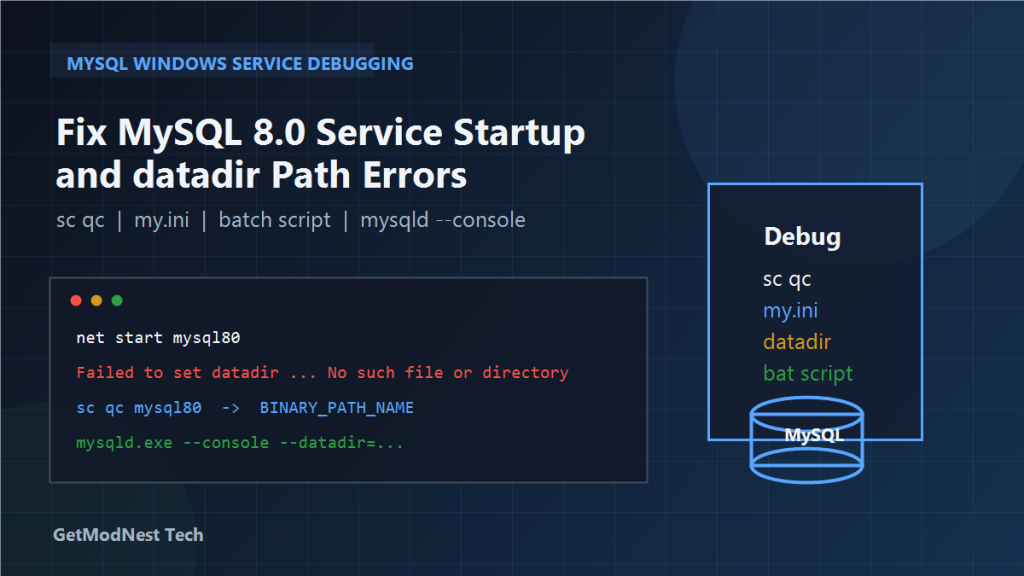
This article documents the process of moving a MySQL 8.0 installation to a new directory on Windows, resolving service startup failures related to incorrect datadir paths, and creating a batch script to start the MySQL console manually for debugging purposes.
During the troubleshooting process, MySQL failed to start because the configured datadir path did not match the actual data directory location. After verifying the service registration, adjusting the my.ini configuration, and confirming the correct basedir and datadir values, the MySQL service was brought back online.
A batch script was also created to quickly start MySQL in console mode for future debugging scenarios.
Environment
- OS: Windows
- Database: MySQL 8.0
- Example installation directory:
D:\MySQL\Server 80 - Example binary path:
D:\MySQL\Server 80\bin\mysqld.exe - Example data directory:
D:\MySQL\Server 80\Data - Windows service name:
mysql80
Problem
After relocating or reconfiguring the MySQL installation on Windows, the MySQL service failed to start.
When attempting to start the service:
net start mysql80it did not succeed.
Starting mysqld manually in console mode for debugging:
mysqld --consolerevealed errors related to the data directory. One of the observed errors was:
Can't create test file D:\MySQL\Server 80\data\...or:
Failed to set datadir to 'D:\MySQL\Server 80\data'
(OS error: 2 - No such file or directory)
This indicated that the datadir path configured in MySQL did not point to a valid, existing directory.
Step 1: Check the Service Registration
First, verify what the Windows service is actually configured to run.
Use the following command:
sc qc mysql80Check the BINARY_PATH_NAME field in the output.
It should point to the correct mysqld executable, for example:
D:\MySQL\Server 80\bin\mysqldIf the binary path points to an old or incorrect MySQL installation, the service needs to be reinstalled.
Step 2: Start MySQL Manually with --console and Explicit --datadir
To isolate the issue, start MySQL manually and specify the data directory explicitly:
mysqld --console --datadir="D:\MySQL\Data"or, if using a configuration file:
mysqld --defaults-file="D:\MySQL\Server 80\my.ini" MySQL80If the startup error disappears when using the correct datadir, the problem is confirmed to be a configuration mismatch.
If a different error appears, such as:
mysql_create_test_file: Can't create/write to fileit usually means the data directory path still does not match or the directory does not exist.
Step 3: Verify and Fix the my.ini Configuration
Open the MySQL configuration file and check the key path settings.
The file is typically located at:
D:\MySQL\Server 80\my.iniCheck the [mysqld] section for the following directives:
[mysqld]
basedir = D:\MySQL\Server 80
datadir = D:\MySQL\Server 80\Data
Make sure that:
basedirpoints to the actual MySQL installation root directorydatadirpoints to the real data directory that contains the MySQL system files- the data directory actually exists on disk
- path separators and quotation marks are consistent
A common mistake is having the datadir value in my.ini set to one location while the actual data files reside in a different directory.
Step 4: Reinstall the Service If Needed
If the service registration was pointing to the wrong binary or configuration, the service can be reinstalled.
Remove the old service:
mysqld --remove mysql80Then install it again with the correct configuration:
mysqld --install mysql80 --defaults-file="D:\MySQL\Server 80\my.ini"This ensures the Windows service uses the intended my.ini file when starting.
Step 5: Start the Service Again
After fixing the configuration and verifying the paths, start the service:
net start mysql80If everything is correct, the service should start successfully.
Creating a Batch Script for Manual MySQL Console Startup
During troubleshooting, it can be useful to have a quick way to start MySQL in console mode for debugging.
A batch script was created for this purpose.
Batch Script: start_mysql_best.bat
@echo off
chcp 65001 >nul
title MySQL Server Console
echo Starting MySQL Server...
echo Waiting for MySQL to be ready...
timeout /t 3 /nobreak >nul
echo Starting MySQL service...
"D:\MySQL\Server 80\bin\mysqld.exe" --console --datadir="D:\MySQL\Data"
pause
This script does the following:
- sets the console code page to UTF-8
- sets a descriptive window title
- waits a few seconds for system readiness
- starts
mysqld.exein console mode with an explicitdatadir - keeps the window open after exit so error messages can be read
This is useful for quickly checking startup errors without needing to type the full command path every time.
Troubleshooting Checklist
- Does the
datadirdirectory actually exist? - Does
sc qc mysql80show the correct binary path? - Does
my.inicontain the correctbasediranddatadirvalues? - Are the paths in
my.iniconsistent with the actual file system layout? - Was the service reinstalled after the configuration was changed?
- Does running
mysqld --consoleshow any specific error messages? - Are there permission issues preventing MySQL from accessing the data directory?
- Is another MySQL instance or service already running and locking the same data files?
Summary
The effective troubleshooting path in this case was:
- attempt to start the MySQL service and observe the failure
- run
mysqld --consoleto see the actual error messages - check the service registration with
sc qc mysql80 - verify the
datadirpath inmy.ini - fix the
basediranddatadirvalues to match the actual file system - reinstall the service with the correct
--defaults-fileif needed - start the service again with
net start mysql80 - optionally create a batch script for quick console-mode debugging in the future
The key lesson is that MySQL service startup failures on Windows are often caused by a mismatch between the configured datadir path and the actual data directory location. Verifying the real paths with sc qc, my.ini, and mysqld --console is the fastest way to identify and fix the issue.
Need Help with a Similar Problem or Project?
This note is based on a real troubleshooting, configuration, or development workflow. If you need help with databases, Linux servers, web applications, desktop software, iOS and Android apps, automation scripts, deployment, or AI development environments, GetModNest can provide practical technical support, troubleshooting, and development assistance.
Email: info@getmodnest.com