Overview
This article documents a troubleshooting case for SQL Server Express remote connection and login failures.
The environment involved SQL Server Express, SQL Server Management Studio, a C# application, Windows authentication, SQL authentication, TCP/IP configuration, and a fixed TCP port.
The main errors observed were:
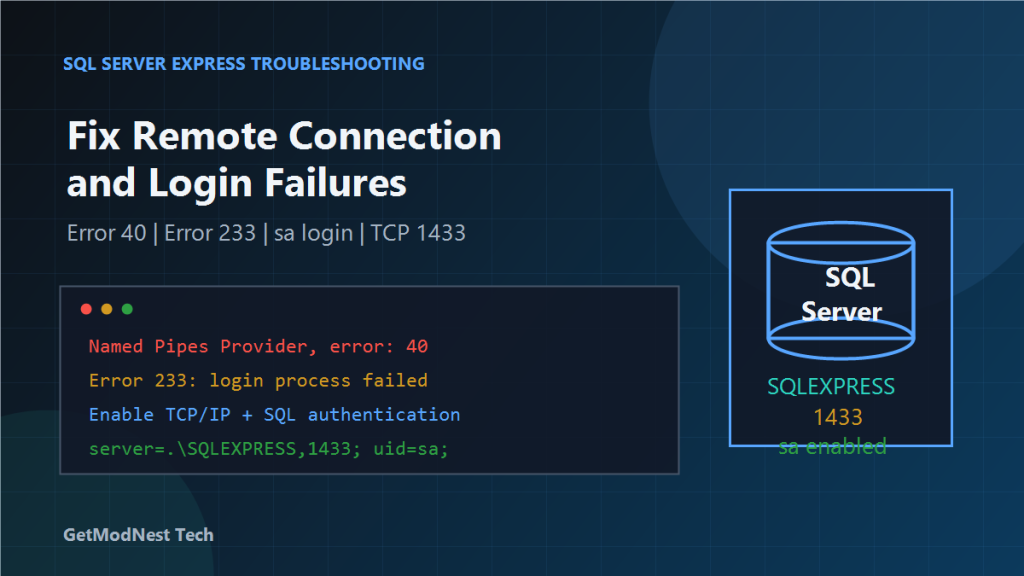
Named Pipes Provider, error: 40 - Could not open a connection to SQL Serverand:
Error 233 - A connection was established, but login process failed.The final resolution was to enable mixed authentication, enable the sa login, configure SQL Server Express to listen on TCP port 1433, restart the SQL Server service, and update the C# connection string.
Environment
- Database: SQL Server Express
- Management tool: SQL Server Management Studio
- Application: C# program
- Instance name:
SQLEXPRESS - Target database example:
MedicalRecordManager - Network protocol:
TCP/IP - Fixed TCP port:
1433
Problem Description
The C# application could not connect to SQL Server Express.
The first error was similar to:
Named Pipes Provider, error: 40 - Could not open a connection to SQL ServerThis usually means the client could not reach the SQL Server instance. Typical causes include a stopped service, wrong instance name, disabled TCP/IP, firewall blocking, or failed named-instance resolution.
Another error appeared when testing SQL login in SSMS:
Error 233 - A connection was established, but login process failed.This means the network connection reached SQL Server, but authentication or login negotiation failed.
Root Diagnosis
The issue involved two separate layers.
1. Network and Instance Connectivity
The client needed to reach SQL Server Express over TCP/IP. A named instance such as SQLEXPRESS may use a dynamic port by default, so a fixed port must be configured if the client connects by port.
2. Authentication and Login Configuration
SSMS could connect by Windows authentication, but SQL login failed. This indicated that mixed authentication might not be enabled or the sa login was disabled.
Step 1: Log in with Windows Authentication
First, use SSMS and connect with Windows authentication.
This confirms that the SQL Server instance exists, the local administrator can access it, and SQL Server itself is running.
Step 2: Enable Mixed Authentication Mode
In SSMS:
- right-click the SQL Server instance
- choose
Properties - open the
Securitypage - select
SQL Server and Windows Authentication mode
This enables SQL logins such as sa.
Step 3: Enable the sa Login
In SSMS:
- expand
Security - expand
Logins - right-click
sa - choose
Properties - set or reset the password
- open the
Statuspage - set
LogintoEnabled
Also make sure the default database is available, often master.
Step 4: Restart the SQL Server Service
After changing authentication mode, restart the SQL Server service.
In SQL Server Configuration Manager, open SQL Server Services, find SQL Server (SQLEXPRESS), right-click it, and choose Restart.
Step 5: Enable TCP/IP for SQL Server Express
Open SQL Server Configuration Manager and navigate to:
SQL Server Network Configuration
  -> Protocols for SQLEXPRESS
Find TCP/IP, right-click it, and choose Enable.
Step 6: Configure TCP Port 1433
In SQL Server Configuration Manager:
- right-click
TCP/IP - choose
Properties - open the
IP Addressestab - scroll to
IPAll - clear
TCP Dynamic Ports - set
TCP Portto1433
The purpose is to make SQL Server Express listen on a fixed port.
Step 7: Restart SQL Server Express Again
After changing TCP/IP settings, restart the service again:
SQL Server (SQLEXPRESS) -> RestartThis applies the TCP/IP and port configuration.
Step 8: Check Firewall Rules
If the connection is from another machine, Windows Firewall must allow inbound TCP traffic on port 1433.
TCP 1433If SQL Server Browser is used for dynamic named-instance discovery, UDP port 1434 may also be required.
Step 9: Test SQL Login in SSMS
After enabling mixed authentication and the sa login, test in SSMS with SQL authentication:
Login: sa
Password: ********
If login still fails, check whether SQL authentication mode was enabled, whether the service was restarted, whether sa is enabled, whether the password is correct, and whether the default database is online.
Step 10: Test the C# Connection String
The notes showed a C# connection string in this style:
server=.\SQLEXPRESS,1433;database=MedicalRecordManager;uid=sa;pwd=********;Encrypt=False;TrustServerCertificate=True;Important points:
.\SQLEXPRESSmeans the local SQL Server Express named instance,1433specifies the TCP portuid=saandpwd=...use SQL authenticationEncrypt=Falseavoids encryption negotiation issues in older local environmentsTrustServerCertificate=Truecan help when encryption is enabled but no trusted certificate is configured
If connecting from another computer, replace . with the server IP or hostname:
server=192.168.1.100\SQLEXPRESS,1433;database=MedicalRecordManager;uid=sa;pwd=********;Encrypt=False;TrustServerCertificate=True;Another common fixed-port format is:
server=192.168.1.100,1433;database=MedicalRecordManager;uid=sa;pwd=********;Encrypt=False;TrustServerCertificate=True;Why Error 40 and Error 233 Appeared
Error 40
Named Pipes Provider, error: 40 - Could not open a connection to SQL ServerThis usually means the client could not establish a working connection to the SQL Server instance. Likely causes were disabled TCP/IP, dynamic port configuration, wrong server or port, or incomplete firewall rules.
Error 233
A connection was established, but login process failedThis means the network path reached SQL Server, but login failed. Likely causes were disabled SQL authentication mode, disabled sa, incorrect password, or unavailable default database.
Recommended Troubleshooting Sequence
- Confirm
SQL Server (SQLEXPRESS)is running. - Test local Windows authentication in SSMS.
- Enable
SQL Server and Windows Authentication mode. - Enable and test
sa. - Enable
TCP/IPunderProtocols for SQLEXPRESS. - Set
IPAll: clearTCP Dynamic Portsand setTCP Portto1433. - Restart
SQL Server (SQLEXPRESS). - Allow inbound
TCP 1433in Windows Firewall. - Test from SSMS and then from the C# application.
Common Mistakes
- Enabling
sabut forgetting to restart SQL Server after changing authentication mode. - Enabling TCP/IP but forgetting to restart the SQL Server service.
- Leaving
TCP Dynamic Portsconfigured while expecting port1433to work. - Using
server=.\SQLEXPRESS,1433from another machine where.means the wrong computer. - Opening firewall rules for the wrong profile or wrong port.
- Confusing Windows authentication success with SQL authentication success.
- Setting the
sadefault database to a database that is offline or inaccessible.
Final Conclusion
The SQL Server Express connection failure involved both connectivity and authentication problems.
The final fix was to connect locally with Windows authentication, enable mixed authentication, enable the sa login, restart SQL Server Express, enable TCP/IP, set fixed port 1433, open the firewall, and update the C# connection string.
The most important lesson is that SQL Server Express remote access requires both a reachable network listener and a valid authentication configuration.
Fixing only the port or only the login is not enough; both layers must be correct.
Need Help with a Similar Problem or Project?
This note is based on a real troubleshooting, configuration, or development workflow. If you need help with databases, Linux servers, web applications, desktop software, iOS and Android apps, automation scripts, deployment, or AI development environments, GetModNest can provide practical technical support, troubleshooting, and development assistance.
Email: info@getmodnest.com