Overview
This article documents a troubleshooting case for a MariaDB 10.2 instance installed under a custom path on Linux.
The database service had startup and access problems. One table could not be opened, and MariaDB reported that a MyISAM index file could not be found.
The key error was similar to:
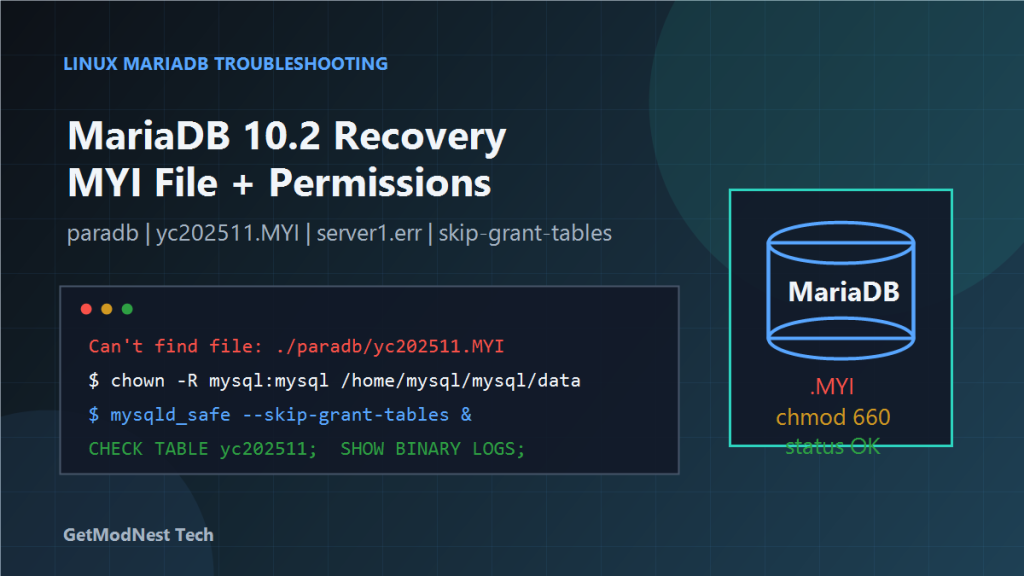
Can't find file: './paradb/yc202511.MYI'During the investigation, another log-related error also appeared:
Error in accept: Bad file descriptorThe troubleshooting process covered checking mysqld, reading the error log, verifying table files, restoring permissions, resetting the root password, checking table health, and reviewing binary logs or replication status.
Environment
- Database: MariaDB 10.2
- Installation path:
/home/mysql/mysql - Binary path:
/home/mysql/mysql/bin - Data directory:
/home/mysql/mysql/data - Problem database:
paradb - Example problem table file:
/home/mysql/mysql/data/paradb/yc202511.MYI - Error log:
/home/mysql/mysql/data/server1.err
Initial Problem
The system showed a table access error:
Can't find file: './paradb/yc202511.MYI'This means MariaDB tried to open a MyISAM index file but could not access it.
Possible causes include a missing file, wrong ownership, wrong permissions, table damage, or incomplete file copy.
Step 1: Check Whether mysqld Is Running
First, check the running process:
ps -ef | grep mysqldThen check the last part of the MariaDB error log:
tail -n 50 /home/mysql/mysql/data/server1.errThe notes showed two important observations: if a mysqld process exists, the service has started at least partially, and the error log contained a message similar to Error in accept: Bad file descriptor.
Step 2: Check the Database Directory and Table Files
Check whether the database directory exists:
ls -l /home/mysql/mysql/data/paradb/Then check the specific table files:
ls -l /home/mysql/mysql/data/paradb/yc202511.*For a MyISAM table, the expected files are usually:
.frm
.MYD
.MYI
Their meanings are:
.frm: table definition.MYD: table data.MYI: table indexes
If .MYI is missing, the table index file may have been deleted or never copied correctly.
If the file exists but MariaDB still reports it as missing, ownership or permission is likely wrong.
Step 3: Restore Ownership and Permissions
The data directory should be owned by the MariaDB service user:
chown -R mysql:mysql /home/mysql/mysql/data/paradbThe notes also included file permission changes:
chmod -R 660 /home/mysql/mysql/data/paradb/*
chmod 750 /home/mysql/mysql/data/paradb
A safer general pattern is:
chown -R mysql:mysql /home/mysql/mysql/data
find /home/mysql/mysql/data -type d -exec chmod 750 {} \;
find /home/mysql/mysql/data -type f -exec chmod 660 {} \;
The purpose is to make directories accessible to the mysql user and table files readable/writable by the service account.
Step 4: Stop mysqld Before Root Password Recovery
If a password reset is required, stop the running mysqld first:
pkill -f mysqld
sleep 5
Make sure there is no remaining mysqld process:
ps -ef | grep mysqldStep 5: Start MariaDB with --skip-grant-tables
Start mysqld_safe manually and bypass grant-table checking:
/home/mysql/mysql/bin/mysqld_safe --datadir=/home/mysql/mysql/data --skip-grant-tables &This mode should only be used for emergency recovery and should not be left running in production.
Step 6: Log in as Root and Reset the Password
Log in locally:
/home/mysql/mysql/bin/mysql -u rootThen update the root password:
USE mysql;
UPDATE user SET password=PASSWORD('superman') WHERE user='root';
FLUSH PRIVILEGES;
EXIT;
After that, stop the temporary mysqld process and start MariaDB normally again.
Step 7: Start MariaDB Normally and Test Login
Stop the emergency instance:
pkill -f mysqld
sleep 5
Start MariaDB normally:
/home/mysql/mysql/bin/mysqld_safe --datadir=/home/mysql/mysql/data &Then test login:
/home/mysql/mysql/bin/mysql -u root -pYou can also run a quick test command:
/home/mysql/mysql/bin/mysql -u root -p -e "SHOW DATABASES;"Step 8: Check the Problem Table
After login succeeds, check the problem table:
USE paradb;
CHECK TABLE yc202511;
If the result is status: OK, then the table is readable.
If the table reports corruption or missing index files, repair may be needed. For MyISAM tables, possible recovery methods include:
REPAIR TABLE yc202511;or using myisamchk while MariaDB is stopped.
Step 9: Check Binary Logs and Replication Status
The notes also mentioned checking binary logs and replication:
SHOW BINARY LOGS;
SHOW SLAVE STATUS\G
The purpose is to verify whether source binary logs are still available, whether replication delay exists, and whether binary logs can be used for recovery.
Step 10: Preserve and Recreate the Error Log
If server1.err itself has permission or write problems, preserve it first:
mv /home/mysql/mysql/data/server1.err /home/mysql/mysql/data/server1.err.bakCreate a new log file:
touch /home/mysql/mysql/data/server1.err
chown mysql:mysql /home/mysql/mysql/data/server1.err
chmod 660 /home/mysql/mysql/data/server1.err
Then restart MariaDB and check whether it can write logs normally.
Root Cause Analysis
The problem was most likely caused by a combination of data directory permission issues and possible table-file inconsistency.
The important clues were:
- MariaDB reported that a
.MYIfile underparadbcould not be found. - The data directory was under a custom path:
/home/mysql/mysql/data. - Ownership and permissions had to be restored manually.
- The error log contained runtime errors such as
Error in accept: Bad file descriptor. - Root login or account access required recovery through
--skip-grant-tables.
The .MYI error may mean the file was truly missing, but it can also appear when MariaDB cannot access the file because of permission or ownership problems.
Recommended Recovery Sequence
- Stop MariaDB cleanly:
pkill -f mysqld sleep 5 - Back up the data directory first:
cp -a /home/mysql/mysql/data /home/mysql/mysql/data_backup_before_fix - Check problem files:
ls -l /home/mysql/mysql/data/paradb/ ls -l /home/mysql/mysql/data/paradb/yc202511.* - Restore ownership and permissions:
chown -R mysql:mysql /home/mysql/mysql/data find /home/mysql/mysql/data -type d -exec chmod 750 {} \; find /home/mysql/mysql/data -type f -exec chmod 660 {} \; - Start MariaDB normally.
- Check table health with
CHECK TABLE yc202511;. - Check binary logs and replication with
SHOW BINARY LOGS;andSHOW SLAVE STATUS\G. - Only use
--skip-grant-tablesif account recovery is needed.
Important Cautions
- Do not change all files to world-writable permissions.
- Do not run multiple
mysqldprocesses against the same data directory. - Do not repair MyISAM files while MariaDB is running unless you understand the locking behavior.
- Do not delete
.frm,.MYD,.MYI, InnoDB files, or binary logs before taking a backup. - Do not leave MariaDB running with
--skip-grant-tableslonger than necessary.
Final Conclusion
This MariaDB recovery case involved both service-level and file-level troubleshooting.
The key actions were to check mysqld status, inspect server1.err, verify /home/mysql/mysql/data/paradb/yc202511.*, restore ownership and permissions, reset root password if needed, check table health, and verify binary logs or replication status.
The general lesson is that MariaDB table access errors may not always mean the table file is physically gone. They can also be caused by ownership, permission, or runtime log-file problems.
Always back up the data directory before making repairs.
Need Help with a Similar Problem or Project?
This note is based on a real troubleshooting, configuration, or development workflow. If you need help with databases, Linux servers, web applications, desktop software, iOS and Android apps, automation scripts, deployment, or AI development environments, GetModNest can provide practical technical support, troubleshooting, and development assistance.
Email: info@getmodnest.com