Overview
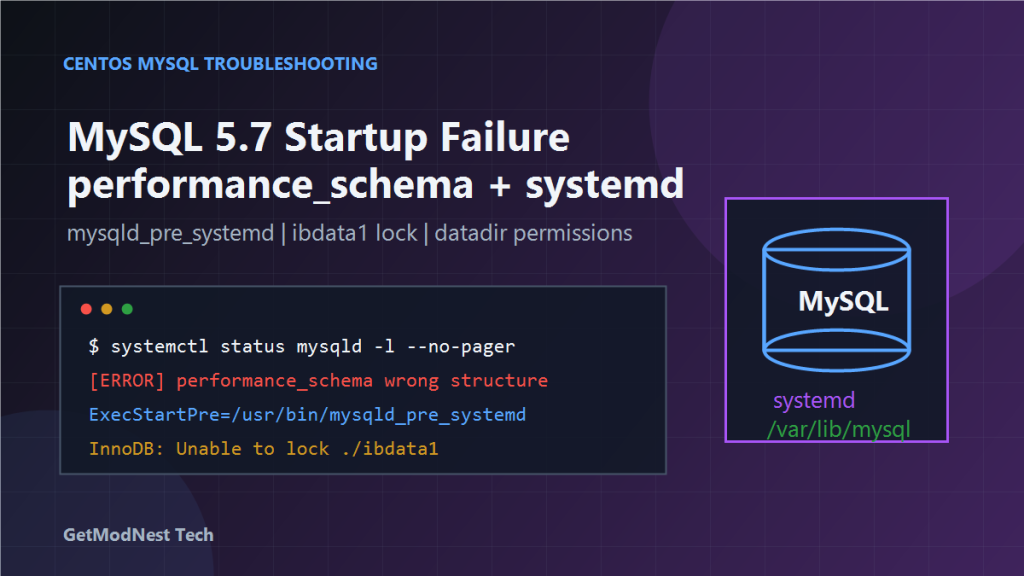
This article documents a real-world troubleshooting case where MySQL 5.7 on CentOS failed to start correctly through systemd.
The investigation covered several layers: service status, performance_schema system table errors, data directory permissions, failed systemd state, manual mysqld startup, a problematic mysqld_pre_systemd script, and stale MySQL processes locking InnoDB files.
Environment
- OS: CentOS
- Database: MySQL 5.7.44
- Service name:
mysqld - Data directory:
/var/lib/mysql - Service manager:
systemd
Initial Service Check
The first check was to restart MySQL and inspect the service state:
systemctl restart mysqld
systemctl status mysqld -l --no-pager
At one point the service showed an active status, for example:
Active: active (running)
PID: 75885
However, the failure appeared again after later restarts, so the service status alone was not enough to confirm that the issue was fully resolved.
Error: Native Table performance_schema Has the Wrong Structure
A key error observed during startup was similar to:
[ERROR] Native table 'performance_schema'.'xxx' has the wrong structureThis usually means that MySQL system tables do not match the server binary version. Common causes include incomplete upgrades, reused data directories, or switching between different MySQL packages.
For MySQL 5.7, after the server can be started, the usual repair direction is:
mysql_upgrade -u root -pStep 1: Verify the Data Directory
The data directory in this case was:
/var/lib/mysqlCheck whether my.cnf and included configuration files point to the expected location:
grep -R "datadir" /etc/my.cnf /etc/my.cnf.d/ 2>/dev/nullThe expected configuration should be consistent with the actual data location:
datadir=/var/lib/mysqlIf manual startup and systemd startup use different data directories, MySQL may behave inconsistently.
Step 2: Fix Ownership and Permissions
The data directory must be owned by the MySQL service user:
chown -R mysql:mysql /var/lib/mysqlRecommended permissions:
find /var/lib/mysql -type d -exec chmod 700 {} \;
find /var/lib/mysql -type f -exec chmod 660 {} \;
This ensures that MySQL can read and write its files while avoiding overly open permissions.
Step 3: Reload and Reset systemd
When a service repeatedly fails, reset the failed state and reload service definitions:
systemctl daemon-reexec
systemctl daemon-reload
systemctl reset-failed mysqld
systemctl start mysqld
This does not fix MySQL data problems directly, but it ensures that systemd is not blocked by stale failed-state information.
Step 4: Manually Start mysqld for Isolation
To determine whether the problem was inside MySQL itself or inside the systemd startup wrapper, manually start mysqld as the mysql user:
sudo -u mysql /usr/sbin/mysqld --datadir=/var/lib/mysql --skip-networking --socket=/tmp/mysql.sock &If manual startup succeeds while systemctl start mysqld fails, the data directory and server binary may be usable, while the systemd startup flow has a separate problem.
Step 5: Inspect the Service Unit
The MySQL service unit was checked with:
cat /usr/lib/systemd/system/mysqld.serviceA relevant line was found:
ExecStartPre=/usr/bin/mysqld_pre_systemdThis means systemd runs /usr/bin/mysqld_pre_systemd before starting the actual MySQL daemon. If this helper script fails, the whole service startup can fail even when mysqld itself can run manually.
Step 6: Temporarily Bypass a Broken mysqld_pre_systemd
To confirm whether the pre-start script was the failing layer, the original script was backed up and replaced with a minimal no-op script:
mv /usr/bin/mysqld_pre_systemd /usr/bin/mysqld_pre_systemd.bak
printf '#!/bin/bash\nexit 0\n' > /usr/bin/mysqld_pre_systemd
chmod +x /usr/bin/mysqld_pre_systemd
systemctl daemon-reload
systemctl reset-failed mysqld
systemctl start mysqld
This is a diagnostic workaround, not a recommended permanent fix. The original script may perform important initialization checks and should be reviewed or restored after the problem is understood.
Step 7: Handle InnoDB File Lock Errors
Another important error was:
InnoDB: Unable to lock ./ibdata1 error: 11This usually means another mysqld process is still running and holding a lock on the same InnoDB system tablespace.
Check existing processes:
ps -ef | grep mysqldIf stale processes are found, stop them gracefully first. If necessary, terminate only the verified MySQL processes:
kill -9 72911
kill -9 72910
The process IDs above are examples. Always verify the actual PIDs before killing anything.
Root Cause Analysis
1. performance_schema Table Mismatch
The wrong-structure error indicates that MySQL system tables were not fully compatible with the running MySQL 5.7 binary.
2. Permission Risk
The /var/lib/mysql directory needed ownership and permission verification. Incorrect ownership can cause startup failures and misleading secondary errors.
3. systemd Pre-Start Failure
Manual startup behaved differently from systemd startup. This pointed to the service wrapper, especially ExecStartPre=/usr/bin/mysqld_pre_systemd.
4. Stale Process Locks
The Unable to lock ./ibdata1 error: 11 message showed that another MySQL process was already using the same data directory. Running multiple MySQL servers on one datadir is dangerous and can cause corruption.
Recommended Recovery Sequence
- Check service status with
systemctl status mysqld -l --no-pager. - Review MySQL logs and identify the first real error.
- Verify
datadirinmy.cnf. - Fix ownership and permissions on
/var/lib/mysql. - Run
systemctl daemon-reloadandsystemctl reset-failed mysqld. - Test manual startup with
--skip-networkingand a temporary socket. - If manual startup works, inspect
mysqld.serviceandExecStartPre. - If
ibdata1is locked, stop duplicatemysqldprocesses. - After startup succeeds, run
mysql_upgrade -u root -pand restart MySQL.
Important Cautions
- Do not run two MySQL server processes against the same data directory.
- Do not delete
ibdata1, redo logs,.ibdfiles, or system tables just to make MySQL start. - Do not permanently replace vendor scripts such as
mysqld_pre_systemdwithout understanding their purpose. - Back up
/var/lib/mysqlbefore invasive repair attempts.
Final Conclusion
The startup failure was caused by overlapping MySQL metadata and service management issues. The key findings were:
performance_schemashowed a wrong-structure error/var/lib/mysqlrequired permission verificationsystemdneeded reload and failed-state reset- manual
mysqldstartup helped isolate the failure layer mysqld_pre_systemdwas a key clue- stale MySQL processes could lock
ibdata1
The general lesson is to troubleshoot MySQL startup in three separate layers: MySQL metadata, operating system permissions and process locks, and the systemd service wrapper.
Need Help with a Similar Problem or Project?
This note is based on a real troubleshooting, configuration, or development workflow. If you need help with databases, Linux servers, web applications, desktop software, iOS and Android apps, automation scripts, deployment, or AI development environments, GetModNest can provide practical technical support, troubleshooting, and development assistance.
Email: info@getmodnest.com