Overview
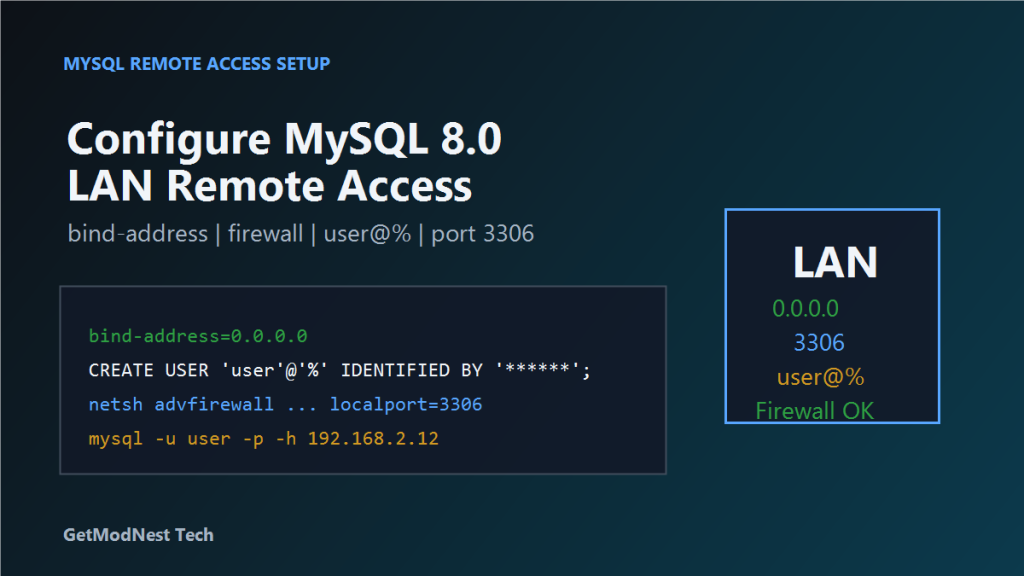
This article documents the process of configuring MySQL 8.0 on Windows 10 so that it can accept remote connections from other machines on the same local network.
The setup included initializing the MySQL data directory, creating a my.ini configuration file, installing the Windows service, creating a remote-access user, opening port 3306 in Windows Firewall, and verifying the connection from another host.
The key setting for network access was configuring MySQL to listen on all interfaces with:
bind-address = 0.0.0.0Environment
- OS: Windows 10
- Database: MySQL 8.0.44
- Installation directory:
D:\Program Files\MySQL\MySQL Server 8.0 - MySQL binary directory:
D:\Program Files\MySQL\MySQL Server 8.0\bin - MySQL service name:
mysql80 - MySQL port:
3306 - Example LAN server IP:
192.168.2.12
Goal
The goal was to allow MySQL to be accessed remotely within the LAN, instead of only allowing local access from localhost.
A remote client should be able to connect using:
mysql -u user -p -h 192.168.2.12Step 1: Initialize the MySQL Data Directory
Open a command prompt and enter the MySQL bin directory:
cd "D:\Program Files\MySQL\MySQL Server 8.0\bin"Then initialize the data directory:
mysqld --initialize --consoleDuring initialization, MySQL prints a temporary password for the root account.
The generated data directory is located under:
D:\Program Files\MySQL\MySQL Server 8.0\dataMake sure the temporary password is saved before closing the console window.
Step 2: Create the MySQL Configuration File
Create a my.ini file under the MySQL installation directory:
D:\Program Files\MySQL\MySQL Server 8.0\my.iniA representative configuration is:
[mysqld]
basedir=D:/Program Files/MySQL/MySQL Server 8.0
datadir=D:/Program Files/MySQL/MySQL Server 8.0/data
port=3306
character-set-server=utf8mb4
default-storage-engine=INNODB
sql-mode="STRICT_TRANS_TABLES,NO_ENGINE_SUBSTITUTION"
bind-address=0.0.0.0

[mysql]
default-character-set=utf8mb4

[client]
port=3306
default-character-set=utf8mb4
The important remote-access setting is:
bind-address=0.0.0.0This tells MySQL to listen on all available network interfaces.
Step 3: Install the MySQL Windows Service
Install MySQL as a Windows service and specify the configuration file:
mysqld.exe --install mysql80 --defaults-file="D:\Program Files\MySQL\MySQL Server 8.0\my.ini"This registers a Windows service named:
mysql80Step 4: Start the MySQL Service
Start the service:
net start mysql80If the service starts successfully, MySQL is now running with the configuration from my.ini.
Step 5: Change the Root Password and Create a Remote User
Log in with the temporary root password:
mysql -u root -pThen change the root password:
ALTER USER 'root'@'localhost' IDENTIFIED BY '123456';Create a dedicated remote-access user:
CREATE USER 'user'@'%' IDENTIFIED BY '123456';Grant privileges to the remote user:
GRANT ALL PRIVILEGES ON *.* TO 'user'@'%';Refresh privileges:
FLUSH PRIVILEGES;Exit MySQL:
EXIT;Using a separate remote user is safer and clearer than exposing the root account for remote login.
Step 6: Open Port 3306 in Windows Firewall
Allow inbound TCP traffic on port 3306:
netsh advfirewall firewall add rule name="MySQL" dir=in action=allow protocol=TCP localport=3306This allows other machines in the LAN to reach the MySQL service.
Step 7: Verify MySQL Network Binding
Log in to MySQL and check the bind-address value:
SHOW VARIABLES LIKE 'bind_address';Expected result:
bind_address | 0.0.0.0If the result is 127.0.0.1, MySQL is still listening only on localhost and remote access will not work.
After changing my.ini, restart the service:
net stop mysql80
net start mysql80
Step 8: Check Whether Port 3306 Is Listening
Use netstat to verify that MySQL is listening on port 3306:
netstat -ano | findstr 3306A correct result should look similar to:
TCP 0.0.0.0:3306 0.0.0.0:0 LISTENINGThis confirms that MySQL is accepting connections on all network interfaces.
Step 9: Confirm the Remote User Privileges
Check the MySQL user table:
SELECT user, host, authentication_string
FROM mysql.user
WHERE user = 'user';
The expected result is that the user exists as:
'user'@'%'This means the account is allowed to connect from remote hosts.
Step 10: Test Local Connection
Before testing from another machine, verify that local TCP connection works:
mysql -u user -p -h 127.0.0.1If this succeeds, the user, password, and local MySQL service are working.
Step 11: Test LAN Remote Connection
From another computer on the same LAN, connect to the MySQL server using the server IP:
mysql -u user -p -h 192.168.2.12Connection parameters:
Host: 192.168.2.12
Port: 3306
User: user
Password: 123456
If the connection succeeds, remote access has been configured correctly.
Troubleshooting Checklist
- Is MySQL running?
- Does
my.iniincludebind-address=0.0.0.0? - Was the MySQL service restarted after modifying
my.ini? - Does
SHOW VARIABLES LIKE 'bind_address';show0.0.0.0? - Does
netstat -ano | findstr 3306show0.0.0.0:3306 LISTENING? - Is Windows Firewall allowing inbound TCP traffic on port
3306? - Does the user exist as
'user'@'%'? - Was
FLUSH PRIVILEGESexecuted after creating or granting the user? - Is the client machine on the same LAN?
- Is the server IP address correct?
Summary
The full configuration process was:
- initialize MySQL with
mysqld --initialize --console - create
my.ini - set
bind-address=0.0.0.0 - install the Windows service with
mysqld.exe --install mysql80 --defaults-file=... - start the service with
net start mysql80 - change the
rootpassword - create a remote user as
'user'@'%' - grant privileges and run
FLUSH PRIVILEGES - open firewall port
3306 - verify
bind_address, listening port, and user permissions - test remote connection from another LAN machine
The key lesson is that MySQL remote access on Windows requires three parts to be correct at the same time: MySQL must listen on the network, Windows Firewall must allow the port, and the MySQL user must be permitted to connect from remote hosts.
Need Help with a Similar Problem or Project?
This note is based on a real troubleshooting, configuration, or development workflow. If you need help with databases, Linux servers, web applications, desktop software, iOS and Android apps, automation scripts, deployment, or AI development environments, GetModNest can provide practical technical support, troubleshooting, and development assistance.
Email: info@getmodnest.com