Overview
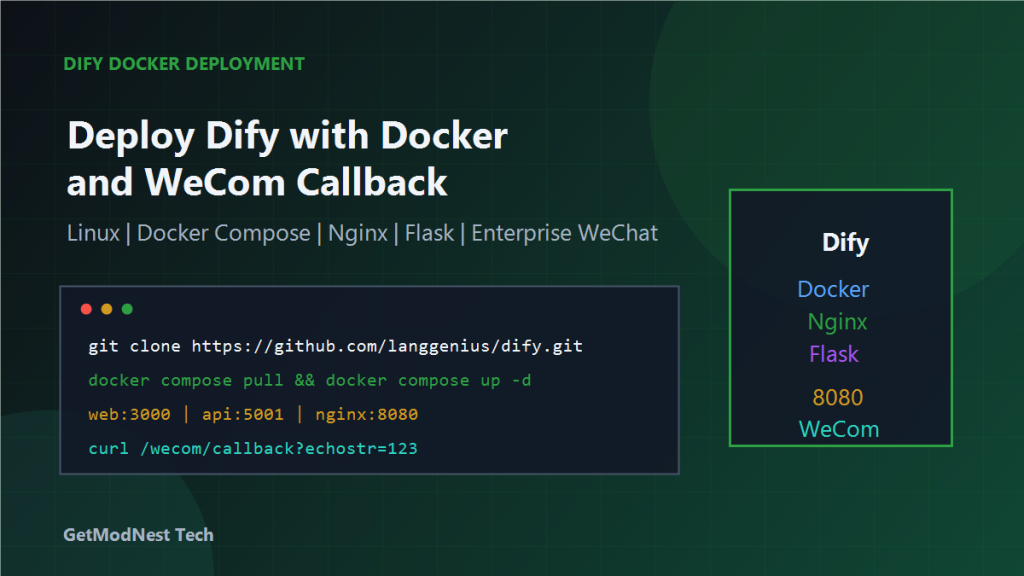
This article documents a practical deployment case for Dify on a Linux server using Docker Compose.
The deployment involved preparing server resources, adding swap space, installing Docker and Docker Compose, cloning the Dify repository, modifying environment and compose configuration, pulling container images, starting services, checking ports, configuring enterprise WeChat callback service, and preparing Nginx reverse proxy configuration.
Server Requirements
Recommended minimum server resources:
CPU: 4 cores
Memory: 8 GB
Disk: 40 GB or more
Dify includes multiple services such as API, web frontend, PostgreSQL, Redis, Nginx, sandbox, plugin daemon, Weaviate, and SSRF proxy. Therefore, memory and disk space are important.
Step 1: Check System Resources
uname -a
lscpu
free -h
df -h
If available memory is limited, add swap space before pulling and starting all containers.
Step 2: Add Swap Space
Create a 4 GB swap file:
fallocate -l 4G /swapfile
chmod 600 /swapfile
mkswap /swapfile
swapon /swapfile
free -h
For production use, add the swap file to /etc/fstab if it should persist after reboot.
Step 3: Verify Docker Environment
docker -v
docker compose version
If Docker is not installed, install Docker first and make sure the daemon is running.
Step 4: Clone the Dify Repository
git clone https://github.com/langgenius/dify.git
cd dify/docker
cp .env.example .env
Step 5: Modify Dify Configuration
Main files to review:
.env
docker-compose.yaml
The notes mentioned adjusting Dify port usage to avoid conflicts with ports 80 and 443, and allowing Nginx to handle external access.
Typical goals:
- avoid direct conflict with system Nginx
- expose internal Dify web/API ports safely
- allow reverse proxy configuration later
- keep service ports predictable
Step 6: Pull Docker Images
docker compose pullThe service images include components such as:
redis
postgres
nginx
dify-api
dify-web
plugin-daemon
sandbox
weaviate
ssrf-proxy
If image pulling is slow or fails, check network access to Docker registries or configure an image mirror.
Step 7: Start Dify
docker compose up -dDefault service mapping recorded in the notes:
Dify web: 3000
Dify API: 5001
Dify Nginx: 8080
Depending on your .env and docker-compose.yaml, the exact host ports may differ.
Step 8: Check Running Containers
docker ps
docker stats
If some containers restart repeatedly, check logs.
Step 9: View Logs
docker compose logs -f
docker compose logs -f api
docker logs -f <container_name>
Logs are the fastest way to locate startup, database, Redis, or migration errors.
Step 10: Configure Enterprise WeChat Callback Service
The notes also mentioned a separate Flask service for enterprise WeChat callback verification.
The callback service handles:
enterprise WeChat verification
message receiving
message forwarding or processing
Example verification command:
curl "http://127.0.0.1:5000/wecom/callback?echostr=123"If the callback service returns the expected echostr or decrypted value, the verification flow is working.
In real enterprise WeChat integration, callback validation usually involves token, encoding AES key, corp ID, signature verification, and message decryption.
Step 11: Configure Nginx Server Block
Nginx can be used as the external reverse proxy.
Typical reverse proxy goals:
- expose Dify web UI
- expose Dify API if needed
- expose enterprise WeChat callback endpoint
- terminate HTTPS
- route requests by domain or path
Example conceptual routing:
https://example.com/               -> Dify web / Nginx
https://example.com/api/           -> Dify API
https://example.com/wecom/callback -> Flask callback service
When Dify’s internal Nginx already uses a port such as 8080, the host Nginx can proxy to it.
Step 12: Maintain Dify Services
docker compose down
docker compose restart
docker compose pull
docker compose up -d
docker system prune -f
Do not remove volumes unless you are sure that database and uploaded files are backed up.
Step 13: Dify Application Usage Scenarios
After deployment, Dify can be used to create AI applications.
- deploy Dify with Docker
- create an application in Dify
- configure a model provider
- add a knowledge base
- write or adjust prompts
- obtain an API key
- integrate the API into another service, such as an enterprise WeChat bot
Step 14: Dify and Enterprise WeChat Integration Flow
Enterprise WeChat user
  -> Enterprise WeChat callback server
  -> Flask service
  -> Dify API
  -> LLM / knowledge base answer
  -> Flask service
  -> Enterprise WeChat reply
Dify handles the AI application logic, while the Flask callback service handles enterprise WeChat protocol verification and message delivery.
Troubleshooting
1. Docker Compose Pull Fails
Check server network, Docker registry access, DNS resolution, disk space, and image mirror configuration.
2. Containers Keep Restarting
docker compose logs -fCommon causes include missing environment variables, database migration errors, port conflicts, or insufficient memory.
3. Dify Web Page Cannot Be Opened
docker ps
docker compose ps
If Nginx is used, also check host Nginx configuration and firewall rules.
4. Port Conflict
ss -lntp
netstat -lntp
Adjust .env or docker-compose.yaml if needed.
5. Enterprise WeChat Callback Verification Fails
Check whether the callback URL is reachable, Nginx routes the path correctly, Flask is running, token and AES key match enterprise WeChat settings, and callback verification response is correct.
6. Dify API Integration Fails
Check Dify API key, endpoint, application ID or workflow ID, model provider configuration, and backend logs.
Backup Recommendations
Before upgrading or cleaning Docker resources, back up important data.
Important data includes:
- PostgreSQL volume
- uploaded files
- vector database volume
.envfile- custom Nginx configuration
- enterprise WeChat callback service code
Avoid running destructive cleanup commands such as down --volumes unless backups are confirmed.
Security Notes
Dify and the enterprise WeChat callback service should not be exposed without protection.
Recommended security practices include HTTPS, restricted ports, secret API keys, strong admin passwords, protected .env, updated packages, and Nginx reverse proxy protection.
Final Conclusion
This deployment used Docker Compose to run Dify on a Linux server and prepared the environment for enterprise WeChat integration.
The key steps were checking server resources, adding swap, verifying Docker, cloning Dify, copying and modifying .env, adjusting docker-compose.yaml and ports, pulling images, starting Dify, verifying containers and logs, configuring enterprise WeChat callback service, and preparing Nginx reverse proxy.
The main lesson is that Dify deployment is not only about starting containers. A complete production-like setup also requires resource planning, port planning, reverse proxy configuration, callback verification, API key management, and backup strategy.
Need Help with a Similar Problem or Project?
This note is based on a real troubleshooting, configuration, or development workflow. If you need help with databases, Linux servers, web applications, desktop software, iOS and Android apps, automation scripts, deployment, or AI development environments, GetModNest can provide practical technical support, troubleshooting, and development assistance.
Email: info@getmodnest.com