Overview
This article documents a practical PyKAN workflow for training a Kolmogorov-Arnold Network on a small regression problem. The notes cover dataset construction, KAN model creation, training, result analysis, prediction usage, Windows environment setup, and Jupyter Notebook execution.
The overall workflow is:
prepare numeric data -> build PyKAN model -> train regression model -> analyze loss and R2 -> run prediction -> use model in JupyterKAN, or Kolmogorov-Arnold Network, is a neural network architecture that uses learnable spline functions. Compared with a traditional MLP, a KAN model can sometimes provide better interpretability because nonlinear transformations are represented on edges by spline-like functions.
Goal
The goal of this experiment was to train a PyKAN model on two input variables and predict one continuous target value.
The problem can be written as:
y = f(x1, x2)This is a regression task. The model receives two numeric inputs and outputs one predicted numeric value.
Dataset Construction
The recorded dataset contains two input features:
x1
x2
and one output target:
y = f(x1, x2)The training and test data can be generated with NumPy or prepared from a real numeric dataset.
Example structure:
input:  x1, x2
target: y
problem type: regression
A typical PyKAN dataset dictionary contains:
dataset = {
    "train_input": train_input,
    "train_label": train_label,
    "test_input": test_input,
    "test_label": test_label,
}
The input tensors should have shape similar to:
[number_of_samples, 2]and the labels should have shape similar to:
[number_of_samples, 1]Create a KAN Model
A basic KAN model can be created with:
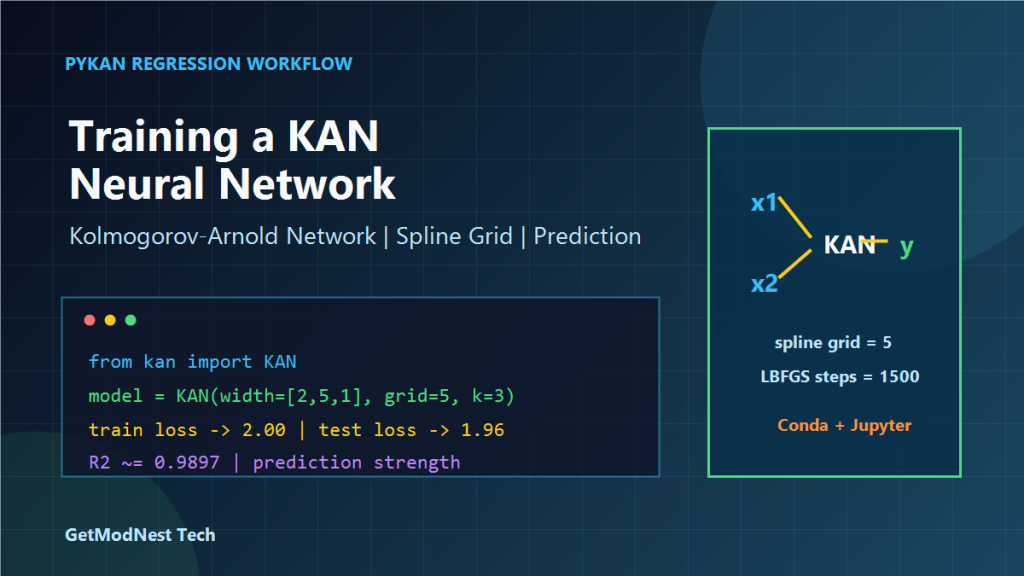
from kan import KAN

model = KAN(
    width=[2, 5, 1],
    grid=5,
    k=3,
)
The meaning of these parameters is:
width=[2, 5, 1]   two input nodes, five hidden units, one output node
grid=5            spline grid size
k=3               spline order
In this setup:
input dimension: 2
hidden layer: 5 KAN units
output dimension: 1
task type: regression
This is a relatively small KAN model, suitable for simple regression experiments and quick tests.
Train the KAN Model
The model was trained for around 1500 epochs in the recorded experiment.
Example training call:
results = model.train(
    dataset,
    opt="LBFGS",
    steps=1500,
    lamb=4.0e-2,
)
The regularization term was approximately:
regularization: about 4.0e-2During training, both training loss and test loss should be monitored.
Recorded trend:
train loss: about 2.50 -> 2.05 -> 2.00 range
test loss:  about 2.88 -> 2.10 -> 1.96 range
The exact values may vary depending on dataset generation, random seed, PyKAN version, and model configuration.
Training Observations
The training logs showed that the loss decreased over time.
Important observations:
training loss decreased gradually
test loss also decreased
regularization helped control spline complexity
the final test loss was around 1.96 in the recorded run
The notes also mention that the spline functions became more stable after training. This is expected because KAN learns nonlinear functions on network edges.
Result Analysis
After training, the model result can be evaluated using regression metrics and plots.
Recorded result examples:
R2: about 0.98973
relative error: about 0.64%
predicted values were close to actual values
Typical analysis steps include:
compare predicted values with actual values
plot prediction vs actual values
plot residual errors
check whether the model overfits
check whether spline functions are too complex
The notes also highlight several important factors:
a/R may be the most important feature, around 68.76% influence
another feature may contribute around 11.24%
the model is relatively stable but not always fully interpretable
The exact feature influence depends on the dataset and interpretation method.
Prediction Usage
After the model is trained, it can be used to predict new samples.
Example idea:
predict_strength(a_over_r, jingt)A prediction function can receive input features and return a predicted strength value.
Conceptually:
input:  a/R and Jingt value
output: predicted strength
Example usage:
strength = predict_strength(0.2, "jingt")
print(strength)
The notes mention example predicted strength values such as:
1625.47
1630.29
These values are examples from the recorded experiment and should be interpreted based on the original dataset units.
Windows Environment Setup for PyKAN
On Windows, it is recommended to create a separate Conda environment for PyKAN.
Create the environment:
conda create -n pykan-env python=3.10.19Activate it:
conda activate pykan-envDownload or place the PyKAN project into a working directory, for example:
D:\CODE\pykanInstall dependencies:
pip install -r requirements.txtIf the package needs to be installed in editable mode:
pip install -e . --force-reinstallIf imports fail, check whether the package directory is correctly installed and whether the environment is activated.
Verify the PyKAN Import
Test the import in Python:
from kan import KANIf the import succeeds, the PyKAN package is available in the current environment.
If it fails, check:
current Conda environment
package installation path
whether pip installed into the correct Python environment
whether there are conflicting package names
Jupyter Notebook Setup
To use PyKAN inside Jupyter Notebook, install an IPython kernel for the Conda environment.
Example command:
python -m ipykernel install --user --name=pykan-env --display-name "Python (pykan-env)"Then start Jupyter Notebook:
jupyter notebookIf the browser does not open automatically, copy the URL shown in the terminal. It may look like:
http://localhost:8888/tree?token=...If you want to start Jupyter without opening the browser automatically:
jupyter notebook --no-browserThen manually open:
http://localhost:8888In the notebook, select the Python (pykan-env) kernel.
Minimal Jupyter Test
Inside Jupyter Notebook, run:
import torch
from kan import KAN

model = KAN(width=[2, 5, 1], grid=5, k=3)
print(model)
If this runs successfully, the environment and PyKAN installation are working.
Common Problems
PyKAN Cannot Be Imported
Check whether the correct Conda environment is active:
conda activate pykan-envThen reinstall the package:
pip install -e . --force-reinstallAlso check whether the current Python executable belongs to the same environment.
Jupyter Does Not Show the Environment Kernel
Install the kernel again:
python -m ipykernel install --user --name=pykan-env --display-name "Python (pykan-env)"Restart Jupyter Notebook and select the new kernel.
Training Loss Does Not Decrease
Possible reasons include:
input data is not normalized
target values have large scale differences
model width is too small
regularization is too strong
the learning optimizer or training steps are not suitable
data contains noise or outliers
Try normalizing the input features and target values before training.
Model Overfits
If training loss is low but test loss remains high, try:
increase regularization
reduce model width
reduce spline grid size
use more training data
check for data leakage
Predictions Are Unstable
Check:
feature scaling
input order
tensor shape
training data coverage
random seed
model save and load process
For regression tasks, predictions outside the training data range may be unreliable.
Practical Notes
Important lessons from the experiment:
KAN can fit nonlinear regression relationships
training and test loss should both be monitored
grid size and regularization affect spline complexity
feature scaling is important for stable training
Jupyter kernel configuration is often the source of environment confusion
prediction functions should validate input ranges
When using PyKAN for real projects, always compare predictions with a baseline model such as linear regression, random forest, XGBoost, or a small MLP.
Final Conclusion
This PyKAN experiment demonstrates a complete workflow for regression training and prediction.
The core process is:
prepare x1 and x2 input features
build a KAN model with width=[2, 5, 1]
train the model for regression
monitor train loss and test loss
evaluate R2 and prediction error
use the trained model for prediction
run the workflow inside a Conda and Jupyter environment
KAN is useful for exploring nonlinear regression problems and inspecting learned spline behavior. However, for practical prediction tasks, it should still be validated carefully with test data, residual analysis, and comparison against simpler baseline models.
Need Help with a Similar Problem or Project?
This note is based on a real troubleshooting, configuration, or development workflow. If you need help with databases, Linux servers, web applications, desktop software, iOS and Android apps, automation scripts, deployment, WordPress, or AI development environments, GetModNest can provide practical technical support, troubleshooting, and development assistance.
Email: info@getmodnest.com