Overview
This article documents a troubleshooting process for a MySQL 8.0 login failure on Windows where the client reported:
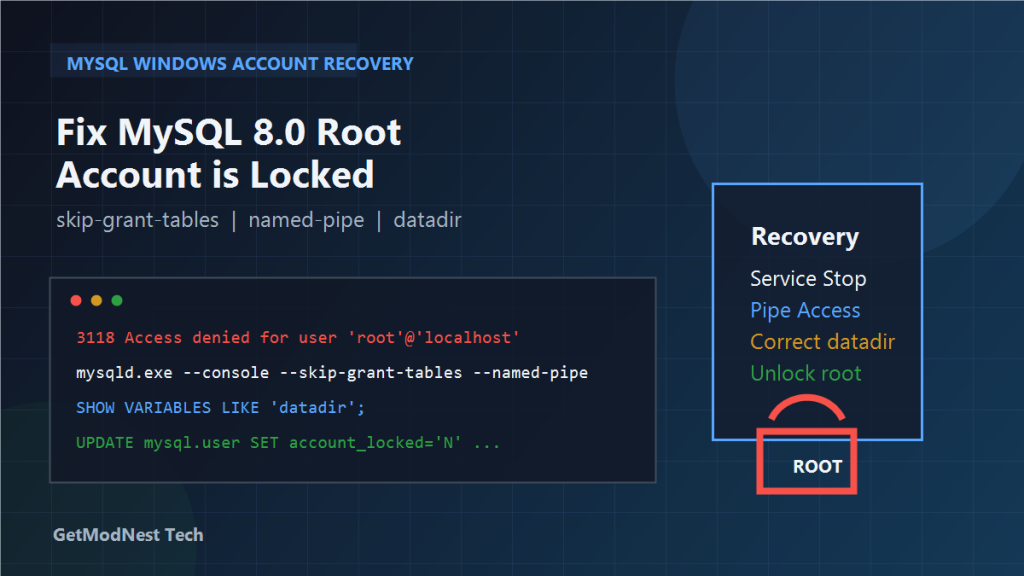
3118 - Access denied for user 'root'@'localhost'. Account is locked.The recovery process involved stopping the MySQL service, starting mysqld manually with --skip-grant-tables, testing different startup options, identifying a mismatch in the actual datadir path, and finally updating the mysql.user table directly to unlock the root account.
This case also showed that, on Windows, named pipe access and the real running data directory can both affect whether password recovery works correctly.
Environment
- OS: Windows
- Database: MySQL 8.0
- Target account:
root@localhost - Example Windows service name:
mysql80 - Example MySQL binary execution path:
mysqld.exe mysql.exe - Example data directory paths encountered during troubleshooting:
C:\ProgramData\MySQL\MySQL Server 8.0\Dataand:
D:\xb\mysql\data
Problem
When trying to log in to MySQL on Windows, the login failed and the client reported an error similar to:
3118 - Access denied for user 'root'@'localhost'. Account is locked.This indicated that the root account itself had been locked.
A normal password-based login could no longer be used, so the goal became to enter recovery mode, inspect the real running environment, and unlock the account manually.
Step 1: Stop the MySQL Service
Before starting recovery mode, stop the Windows MySQL service:
net stop mysql80This is necessary because mysqld must be started manually in the next steps.
Step 2: Start MySQL with --skip-grant-tables
The first recovery attempt was to start MySQL manually from the bin directory with:
mysqld.exe --skip-grant-tables --consoleThen another command window was opened to connect with:
mysql -u rootHowever, the recovery attempt did not work as expected.
One important observation was that even when --skip-grant-tables was used, Windows-specific access behavior still made recovery less straightforward than expected.
Step 3: Handle the failed to find valid data directory Error
A later attempt in PowerShell used:
mysqld.exe --console --skip-grant-tablesbut MySQL reported an error similar to:
failed to find valid data directoryThat meant MySQL was not starting with the correct data directory.
To address this, the datadir parameter was specified explicitly:
mysqld.exe --console --skip-grant-tables --datadir="C:\ProgramData\MySQL\MySQL Server 8.0\Data"This resolved the missing data directory issue, but another startup-related message still appeared.
Step 4: Handle the Communication Method Error on Windows
Another error observed during recovery was:
TCP/IP, --shared-memory, or --named-pipe should be configured on NT OSThis means that on Windows, MySQL needs an enabled communication method when it is started manually.
To address this, MySQL was started again with named pipe enabled:
mysqld.exe --console --skip-grant-tables --datadir="C:\ProgramData\MySQL\MySQL Server 8.0\Data" --named-pipeThen a second window was used to connect through pipe mode:
mysql.exe -u root --protocol=PIPEEven then, access problems still appeared in some attempts.
This suggested that the issue was not only about authentication bypass. The actual runtime environment also needed to be verified carefully.
Step 5: Confirm the Real Running datadir
Inside the MySQL shell, one of the key diagnostic checks was:
SHOW VARIABLES LIKE 'datadir';This step was important because the data directory used by the running MySQL instance turned out not to match the expected location in every attempt.
A crucial discovery was that:
- one configuration or startup assumption pointed to:
C:\ProgramData\MySQL\MySQL Server 8.0\Data - but the actual active data directory in another stage of troubleshooting was:
D:\xb\mysql\data
This mismatch explained why some recovery attempts did not affect the real MySQL instance that held the locked root account.
Step 6: Restart Recovery Using the Correct datadir
After identifying the correct data directory, the MySQL service was stopped again:
net stop mysql80Then mysqld was started manually with the corrected path:
mysqld.exe --console --skip-grant-tables --datadir="D:\xb\mysql\data"After that, another command window was opened and the connection was attempted again, preferably from the bin directory:
mysql.exe -u root --protocol=PIPEUsing the correct datadir was a turning point in the recovery process.
Step 7: Understand Why ALTER USER Failed in Recovery Mode
An attempt was made to unlock the account with:
ALTER USER 'root'@'localhost' ACCOUNT UNLOCK;but MySQL responded with an error similar to:
The MySQL server is running with the --skip-grant-tables option so it cannot execute this statement.This behavior is expected.
When MySQL runs with --skip-grant-tables, some account-management statements such as ALTER USER are blocked.
That means account recovery must be done by modifying system tables directly instead of using normal account management syntax.
Step 8: Inspect the Lock Status in mysql.user
To verify the current state of the root account, a query like the following was used:
SELECT user, host, account_locked
FROM mysql.user
WHERE user = 'root';
This made it possible to confirm whether the root account was still marked as locked.
Step 9: Unlock root by Updating mysql.user
Because ALTER USER ... ACCOUNT UNLOCK could not be executed under --skip-grant-tables, the practical recovery method was to update the system table directly:
UPDATE mysql.user
SET account_locked = 'N'
WHERE user = 'root' AND host = 'localhost';
Then apply the change:
FLUSH PRIVILEGES;This direct table update was the actual fix that unlocked the root account.
Step 10: Restart MySQL Normally
After the table update, stop the temporary mysqld recovery process and return to normal service mode.
Then start the Windows service again:
net start mysql80This restores standard authentication behavior.
Step 11: Test the Login Again
Finally, test a normal login:
mysql -u root -pIf the account has been unlocked successfully and the password is correct, the login should work normally again.
Why This Case Was Tricky
This troubleshooting process had several overlapping factors:
- the
rootaccount was actually locked --skip-grant-tablesalone did not immediately solve the problem- Windows manual startup required a valid communication method such as named pipe
- some recovery attempts were targeting the wrong data directory
ALTER USERcould not be used while--skip-grant-tableswas active
Only after all of these factors were handled together did the recovery succeed.
Troubleshooting Checklist
- Is the Windows service fully stopped before manual recovery?
- Are you starting
mysqldfrom the correctbindirectory? - Does the recovery command use the real
datadirof the active MySQL instance? - Does Windows manual startup need
--named-pipeor another communication option? - Are you connecting with
mysql.exe -u root --protocol=PIPEwhen pipe mode is enabled? - Did
SHOW VARIABLES LIKE 'datadir';confirm the real running data path? - Are you trying to use
ALTER USERwhile--skip-grant-tablesis active? - Did you run
FLUSH PRIVILEGESafter updatingmysql.user? - Did you restart MySQL normally before testing standard login again?
Summary
The effective recovery path in this case was:
- stop the MySQL Windows service
- start
mysqldmanually with--skip-grant-tables - if needed, add the correct
--datadir - on Windows, enable a valid communication method such as
--named-pipe - connect with
mysql.exe -u root --protocol=PIPE - verify the actual data directory with
SHOW VARIABLES LIKE 'datadir'; - update
mysql.userdirectly to setaccount_locked = 'N' - run
FLUSH PRIVILEGES - restart the MySQL service normally
- test
mysql -u root -pagain
The key lesson is that a MySQL Account is locked error on Windows may involve more than just the lock flag itself. The real recovery depends on using the correct running data directory, choosing the proper communication method, and understanding which SQL statements are blocked under --skip-grant-tables.
Need Help with a Similar Problem or Project?
This note is based on a real troubleshooting, configuration, or development workflow. If you need help with databases, Linux servers, web applications, desktop software, iOS and Android apps, automation scripts, deployment, or AI development environments, GetModNest can provide practical technical support, troubleshooting, and development assistance.
Email: info@getmodnest.com