Overview
This article documents a troubleshooting process for a Linux server where MySQL 5.7 appeared to be installed and the mysqld service was already running, but the mysql client command could not be used normally.
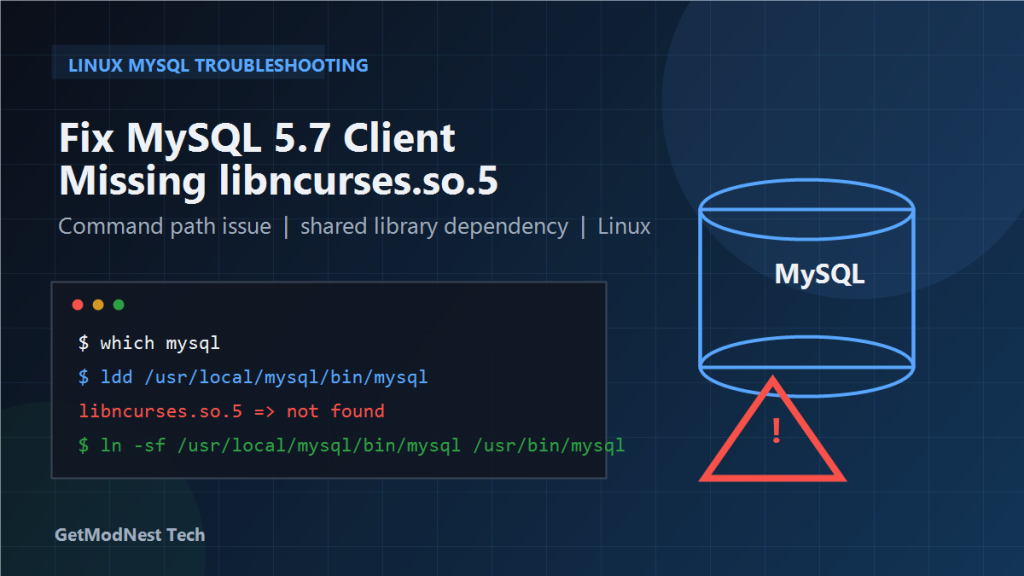
During the investigation, it was found that the issue was not only related to the client command path, but also to a missing shared library dependency: libncurses.so.5.
This article presents the troubleshooting process as a structured English technical write-up.
Environment
- OS shown by
/etc/os-release:LinxOS-SG7 - Version:
6.0.99-SG7 - CPU architecture:
x86_64 - Kernel examples observed during troubleshooting:
4.19.0-11-linx-security-amd644.19.90-2206.2.0.0154.x86_64
- Database: MySQL 5.7
- MySQL service:
mysqld.service - MySQL server binary path:
/usr/local/mysql/bin/mysqld - MySQL data directory:
/usr/local/mysql/data
Problem
The server-side MySQL process appeared to be running normally, but when trying to use the client command:
mysql -u root -pa system error message appeared instead of a normal MySQL login prompt.
One of the observed error messages was:
Could not find the database of available applications.
run update-command-not-found as root to fix this.
Sorry, command-not-found has crashed!
This suggested that the mysql client command was either not in the expected path, not properly linked, or not executable because of missing dependencies.
Step 1: Check the Operating System Version
First, verify the operating system information:
cat /etc/os-releaseObserved output:
NAME="LinxOS-SG7"
VERSION="6.0.99-SG7"
ID=LinxOS
VERSION_ID="6.0.99"
This was useful because some later behavior looked partly Debian-like, while the package source that had been used earlier looked more like an RPM-based installation approach.
Step 2: Check the CPU Architecture
Verify the system architecture:
uname -aThe environment was x86_64 GNU/Linux.
This matters because the MySQL package and any required shared libraries must match the architecture.
Step 3: Confirm the MySQL Service Status
Check whether the MySQL service is running:
systemctl status mysqldAt that point, the service status showed that:
- service name:
mysqld.service - startup status:
active (running) - server binary path:
/usr/local/mysql/bin/mysqld - data directory:
/usr/local/mysql/data
This showed an important clue: MySQL server startup itself was not the main issue at that moment. The problem was more likely related to the client command.
Step 4: Identify That the Problem Is with the Client Command
Since systemctl status mysqld already showed MySQL as running, it became clear that the server was probably fine and the problem was instead with the mysql executable.
That is why the troubleshooting focus shifted from service startup to command path and shared library inspection.
Step 5: Check Whether the mysql Command Exists in the System Path
Check where the system resolves the mysql command:
which mysqlIf nothing is returned, or the path is not the expected one, it means the command is not available in the shell path.
The command path was problematic, so the next step was to create a symbolic link.
Step 6: Create a Symbolic Link for the MySQL Client
Create a symbolic link from the MySQL installation directory into /usr/bin:
ln -sf /usr/local/mysql/bin/mysql /usr/bin/mysqlAnother approach was to append the MySQL binary directory to PATH:
echo 'export PATH=$PATH:/usr/local/mysql/bin' >> /etc/profileEither method makes the mysql client easier to invoke globally.
Step 7: Test the MySQL Client Again
After creating the symbolic link, test the client:
mysql -Vor:
mysql --versionAn expected output would be similar to:
mysql Ver 14.14 Distrib 5.7.16, for Linux-glibc2.5 (x86_64)However, the problem did not fully disappear, which indicated that the command path was not the only issue.
Step 8: Verify That the MySQL Client Binary Really Exists
Check the MySQL binary directory directly:
ls -l /usr/local/mysql/bin | grep mysqlIt was confirmed that files such as the following were present:
mysqldmysqld_safemysqladmin- and other MySQL-related binaries
This confirmed that the installation directory existed and contained MySQL executables.
At one stage, the client binary itself might not originally have been present in the expected place, so there was also an attempt to copy the client binary from an extracted tar package.
Step 9: Restore or Copy the MySQL Client Binary If Necessary
An attempt was made to extract a MySQL tarball and copy the mysql client binary manually.
Example package name used during troubleshooting:
mysql-5.7.16-linux-glibc2.5-x86_64.tar.gzPossible steps included:
tar -xzf mysql-5.7.16-linux-glibc2.5-x86_64.tar.gz
cp mysql-5.7.16-linux-glibc2.5-x86_64/bin/mysql /usr/local/mysql/bin/
chmod +x /usr/local/mysql/bin/mysql
This was meant to ensure that the mysql client binary actually existed and was executable.
Step 10: Check Shared Library Dependencies
Inspect the dependencies of the MySQL client binary:
ldd /usr/local/mysql/bin/mysqlThis turned out to be a key diagnostic step.
It was observed that one dependency was missing:
libncurses.so.5 => not foundThis meant the mysql client executable could not run correctly because the required compatibility library was absent on the system.
Step 11: Search for Existing libncurses Libraries
Search the system for available libncurses shared libraries:
find /usr -name "libncurses.so*" 2>/dev/nullObserved results included:
/usr/lib/x86_64-linux-gnu/libncurses.so.6
/usr/lib/x86_64-linux-gnu/libncurses.so.6.1
/usr/lib/x86_64-linux-gnu/libncurses.so
This showed that the system had libncurses.so.6, but the MySQL client expected libncurses.so.5.
Step 12: Create a Compatibility Symlink for libncurses.so.5
A practical workaround was to create a symbolic link so that libncurses.so.5 points to libncurses.so.6:
sudo ln -sf libncurses.so.6 libncurses.so.5Then verify the link exists:
ls -la libncurses.so.5After that, run the dependency check again:
ldd /usr/local/mysql/bin/mysqlIf all dependencies are resolved, the missing-library problem should disappear.
Step 13: Restart MySQL If Needed
The MySQL service was also restarted during troubleshooting:
sudo systemctl restart mysqldNeed Help with a Similar Problem or Project?
This note is based on a real troubleshooting, configuration, or development workflow. If you need help with databases, Linux servers, web applications, desktop software, iOS and Android apps, automation scripts, deployment, or AI development environments, GetModNest can provide practical technical support, troubleshooting, and development assistance.
Email: info@getmodnest.com