Overview
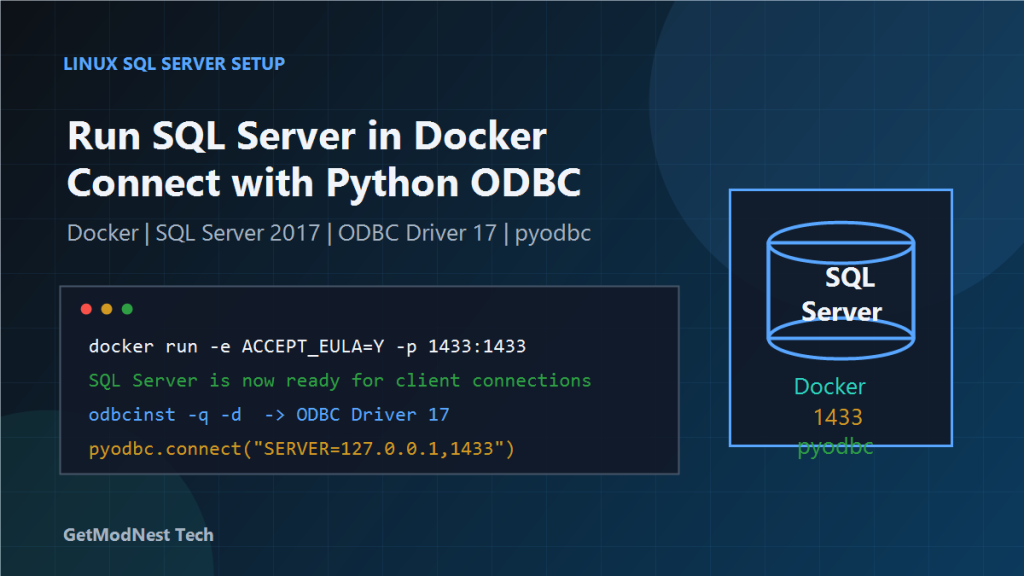
This article documents a practical setup for running SQL Server on Linux with Docker and connecting to it from Python through Microsoft ODBC Driver and pyodbc.
The process included pulling the SQL Server container image, exposing port 1433, checking container status and logs, installing unixODBC, installing Microsoft ODBC Driver 17, checking driver registration, and testing a Python connection.
Environment
- OS: Linux, Ubuntu-style package management
- CPU architecture:
x86_64 - Container runtime: Docker
- Database image:
mcr.microsoft.com/mssql/server:2017-latest - SQL Server port:
1433 - ODBC driver:
ODBC Driver 17 for SQL Server - Python package:
pyodbc
Background Notes
SQL Server for Linux does not support every CPU architecture. For normal Microsoft SQL Server Linux container images, x86_64 is expected.
The notes also indicated that SQL Server 2017 on Linux is a container-based or Docker-based deployment in this setup.
Step 1: Pull the SQL Server Docker Image
docker pull mcr.microsoft.com/mssql/server:2017-latestThis downloads the SQL Server container image from Microsoft Container Registry.
Step 2: Start the SQL Server Container
docker run \
  -e "ACCEPT_EULA=Y" \
  -e "MSSQL_SA_PASSWORD=Sqlserver@123" \
  -p 1433:1433 \
  --name sqlserver \
  -d mcr.microsoft.com/mssql/server:2017-latest
Parameter explanation:
ACCEPT_EULA=Y: accepts the SQL Server license agreementMSSQL_SA_PASSWORD=...: sets thesapassword-p 1433:1433: maps host port1433to container port1433--name sqlserver: names the containersqlserver-d: runs the container in the background
A strong password is required. SQL Server will refuse weak sa passwords.
Step 3: Verify the Container Is Running
docker psThe sqlserver container should appear in the running container list. If it exits immediately, check logs.
Step 4: Check SQL Server Logs
docker logs -f sqlserverA successful startup should show a message similar to:
SQL Server is now ready for client connectionsThis confirms that SQL Server has completed startup and is ready to accept connections.
Step 5: Check Port Listening and Mapping
ss -lntp | grep 1433Also check Docker port mapping:
docker port sqlserverExpected mapping:
1433/tcp -> 0.0.0.0:1433If needed, binding can also be made explicit:
-p 127.0.0.1:1433:1433This limits access to localhost only.
Step 6: Test Network Connectivity
telnet 127.0.0.1 1433If the connection opens, the port is reachable. If it fails, check whether the container is running, SQL Server finished startup, port mapping is correct, and firewall rules allow access.
Step 7: Install unixODBC
sudo apt install unixodbc unixodbc-dev -yThese packages provide the ODBC manager and development headers required by Python packages such as pyodbc.
Step 8: Add the Microsoft Package Repository
curl https://packages.microsoft.com/keys/microsoft.asc | sudo apt-key add -

curl https://packages.microsoft.com/config/ubuntu/22.04/prod.list | sudo tee /etc/apt/sources.list.d/mssql-release.list

sudo apt update
If the system is not Ubuntu 22.04, use the repository path that matches the actual OS version.
Step 9: Install Microsoft ODBC Driver 17
sudo ACCEPT_EULA=Y apt install msodbcsql17 -yThe ACCEPT_EULA=Y variable is required to accept the license agreement during installation.
Step 10: Verify the ODBC Driver
odbcinst -q -dExpected output should include:
[ODBC Driver 17 for SQL Server]You can also verify from Python:
python -c "import pyodbc; print(pyodbc.drivers())"Step 11: Install or Verify pyodbc
pip install pyodbcIf multiple Python environments are used, make sure pyodbc is installed in the same environment where the application runs.
Step 12: Test Python Connection to SQL Server
import pyodbc

conn = pyodbc.connect(
    "DRIVER={ODBC Driver 17 for SQL Server};"
    "SERVER=127.0.0.1,1433;"
    "DATABASE=master;"
    "UID=sa;"
    "PWD=Sqlserver@123;"
    "TrustServerCertificate=yes;"
)

cursor = conn.cursor()
cursor.execute("SELECT @@VERSION")
print(cursor.fetchone()[0])

cursor.close()
conn.close()
If this prints the SQL Server version, the Docker SQL Server instance and ODBC connection are working.
Common Connection String Notes
Use a comma before the port for SQL Server:
SERVER=127.0.0.1,1433Do not use a colon in SQL Server connection strings unless the specific driver supports it.
For remote access, replace 127.0.0.1 with the Linux server IP address and make sure firewall rules allow TCP 1433.
Troubleshooting Common Issues
1. Container Exits Immediately
docker logs sqlserverCommon causes include weak MSSQL_SA_PASSWORD, missing ACCEPT_EULA=Y, insufficient memory, or unsupported CPU architecture.
2. Port 1433 Is Not Reachable
docker ps
docker port sqlserver
ss -lntp | grep 1433
Make sure the container is running and the port is mapped correctly.
3. ODBC Driver Is Not Found
odbcinst -q -d
python -c "import pyodbc; print(pyodbc.drivers())"
If ODBC Driver 17 for SQL Server is missing, reinstall msodbcsql17.
4. Login Fails for User sa
Check whether the password is correct, SQL Server finished startup, the connection reaches the correct container, and the connection string matches MSSQL_SA_PASSWORD.
5. Application Cannot Connect Remotely
If the container is bound only to 127.0.0.1, remote clients cannot connect. For remote access, use:
-p 1433:1433and open TCP 1433 in the host firewall.
Recommended Verification Checklist
- Docker is installed and running.
- The SQL Server image was pulled successfully.
- The container is running:
docker ps. - Logs show readiness:
docker logs -f sqlserver. - Port mapping is correct:
docker port sqlserver. - Host port is listening:
ss -lntp | grep 1433. - ODBC driver is installed:
odbcinst -q -d. - Python can see the driver:
python -c "import pyodbc; print(pyodbc.drivers())". - Python can connect and run
SELECT @@VERSION.
Final Conclusion
The SQL Server Linux environment was successfully built by running SQL Server 2017 in Docker and exposing port 1433.
The Python connection required Microsoft ODBC Driver 17 and pyodbc.
The most important points were to use an x86_64 Linux environment, run SQL Server with ACCEPT_EULA=Y, set a strong MSSQL_SA_PASSWORD, map port 1433, confirm logs show readiness, install unixODBC and msodbcsql17, and use SERVER=127.0.0.1,1433 in the Python connection string.
This setup is suitable for development, testing, and application integration scenarios where SQL Server is required on a Linux host.
Need Help with a Similar Problem or Project?
This note is based on a real troubleshooting, configuration, or development workflow. If you need help with databases, Linux servers, web applications, desktop software, iOS and Android apps, automation scripts, deployment, or AI development environments, GetModNest can provide practical technical support, troubleshooting, and development assistance.
Email: info@getmodnest.com