Overview
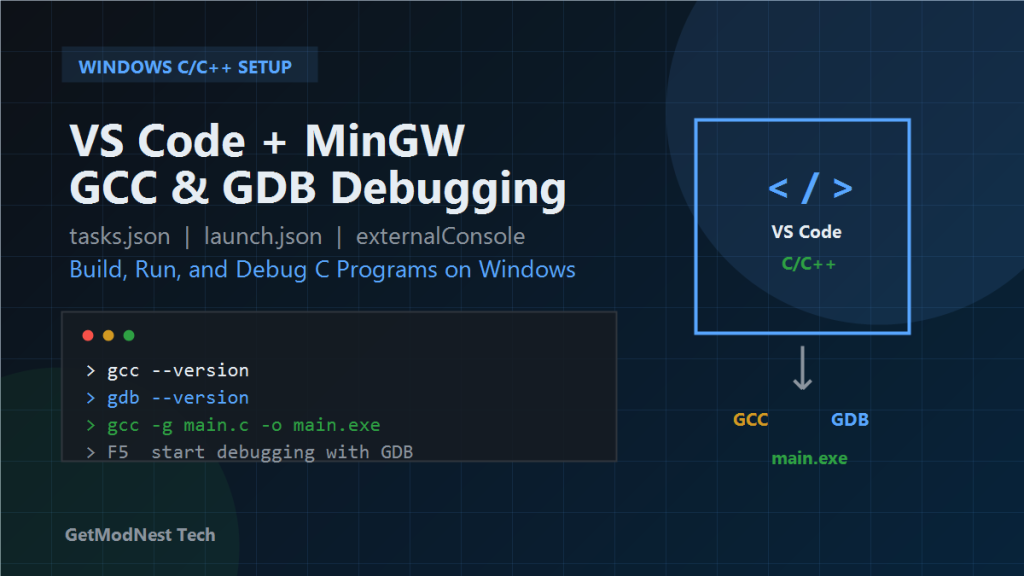
This article documents how to configure Visual Studio Code on Windows for C/C++ development using MinGW GCC and GDB.
write C code -> build with gcc -> debug with gdb -> run in external consoleEnvironment
OS: Windows
Editor: Visual Studio Code
Compiler: MinGW GCC
Debugger: GDB
Config files: tasks.json, launch.json
Required Extensions
C/C++ Extension Pack
C/C++ Themes
CMake Tools
Install MinGW GCC and GDB
Install MinGW and make sure both gcc.exe and gdb.exe exist.
C:\mingw64\bin\gcc.exe
C:\mingw64\bin\gdb.exe
Add the MinGW bin directory to the Windows system PATH:
C:\mingw64\binVerify the installation:
gcc --version
gdb --version
Test C Program
#include <stdio.h>

int main() {
    int age;
    printf("Please enter your age: ");
    scanf("%d", &age);
    printf("You are %d years old.\n", age);
    return 0;
}
tasks.json
{
  "version": "2.0.0",
  "tasks": [
    {
      "label": "C/C++: gcc.exe build active file",
      "type": "shell",
      "command": "C:\\mingw64\\bin\\gcc.exe",
      "args": [
        "-fdiagnostics-color=always",
        "-g",
        "${file}",
        "-o",
        "${fileDirname}\\${fileBasenameNoExtension}.exe"
      ],
      "options": { "cwd": "${fileDirname}" },
      "problemMatcher": ["$gcc"],
      "group": { "kind": "build", "isDefault": true }
    }
  ]
}
launch.json
{
  "version": "0.2.0",
  "configurations": [
    {
      "name": "C/C++: gcc.exe build and debug active file",
      "type": "cppdbg",
      "request": "launch",
      "program": "${fileDirname}\\${fileBasenameNoExtension}.exe",
      "args": [],
      "stopAtEntry": false,
      "cwd": "${fileDirname}",
      "environment": [],
      "externalConsole": true,
      "MIMode": "gdb",
      "miDebuggerPath": "C:\\mingw64\\bin\\gdb.exe",
      "preLaunchTask": "C/C++: gcc.exe build active file"
    }
  ]
}
Key Settings
-g: generate debug symbols
externalConsole: true
MIMode: gdb
miDebuggerPath: C:\mingw64\bin\gdb.exe
preLaunchTask: must match the task label
Build and Debug
Open main.c, run the build task with Ctrl + Shift + B, then press F5 to start debugging.
Expected result:
Please enter your age: 24
You are 24 years old.
Optional: Install GCC Through MSYS2
The notes also mention using MSYS2 as the Windows C/C++ environment source. This is a clean way to install a modern MinGW-w64 GCC toolchain.
pacman -Syu
pacman -S mingw-w64-x86_64-gcc mingw-w64-x86_64-gdb
Add this path to the Windows system PATH:
C:\msys64\mingw64\binVerify again in a new terminal:
gcc --version
gdb --version
Optional: Configure Code Runner
Code Runner is convenient for quick tests, but real debugging should still use tasks.json and launch.json.
{
  "code-runner.executorMap": {
    "c": "cd $dir && gcc $fileName -o $fileNameWithoutExt.exe && start cmd /c $fileNameWithoutExt.exe"
  },
  "terminal.integrated.defaultProfile.windows": "Command Prompt"
}
This lets the Run Code button compile the current C file and run the generated executable in a command prompt window.
Final Verification
1. Save hello.c or main.c.
2. Press Ctrl + Shift + B to build.
3. Confirm that an .exe file is generated.
4. Press F5 to debug.
5. Confirm that the external console opens.
6. Enter input when scanf asks for it.
7. Confirm that the program prints the expected result.
Troubleshooting
gcc or gdb Is Not Recognized
Check whether C:\mingw64\bin is in PATH and reopen VS Code.
scanf Input Does Not Work
Set externalConsole to true.
Debugging Cannot Start
Check program, miDebuggerPath, preLaunchTask, and cwd.
Final Result
write C code
build with gcc
generate exe
debug with gdb
run in external console
enter input and verify output
This is a lightweight and practical Windows C/C++ development environment for learning and debugging small console programs.
Need Help with a Similar Problem or Project?
This note is based on a real troubleshooting, configuration, or development workflow. If you need help with databases, Linux servers, web applications, desktop software, iOS and Android apps, automation scripts, deployment, or AI development environments, GetModNest can provide practical technical support, troubleshooting, and development assistance.
Email: info@getmodnest.com