Overview
This article documents a Windows 11 local development database setup involving MySQL, MongoDB, and Redis.
The goal was to prepare the database environment required by a development project and verify that all databases could be started and connected from the IDE.
The setup included confirming MySQL and MongoDB Windows services, running Redis through WSL Ubuntu, starting all services, testing connectivity, adjusting Redis development configuration, and verifying connections from IntelliJ IDEA.
Environment
- OS: Windows 11
- IDE: IntelliJ IDEA
- MySQL version:
MySQL 8.0.44 - MongoDB version:
MongoDB 8.0.15 - Redis version:
Redis 6.0.16 - Redis runtime:
WSL Ubuntu 22.04.5 LTS - MySQL port:
3306 - MongoDB port:
27017 - Redis port:
6379
Goal
The goal was to ensure that the application development environment could access all required databases locally.
The expected setup was:
- MySQL runs as a Windows service and starts automatically
- MongoDB runs as a Windows service and starts automatically
- Redis runs inside WSL Ubuntu and can be started manually
- IDEA can connect to the required project databases
Step 1: Confirm Database Service Installation
MySQL
MySQL 8.0 was already installed as a Windows service and configured to start automatically.
MySQL service exists and starts with WindowsMongoDB
MongoDB was also installed as a Windows service and configured to start automatically.
MongoDB service exists and starts with WindowsRedis
Redis was not installed as a native Windows service. Instead, it was running through WSL Ubuntu 22.04.5 LTS.
Start Redis manually inside WSL UbuntuStep 2: Start All Required Services
The startup order was:
- start Windows
- MySQL and MongoDB start automatically
- open Ubuntu in WSL
- start Redis manually
- start the development project or connect from IDEA
This ensures that all backend dependencies are available before the application starts.
Step 3: Verify MySQL Connectivity
MySQL was tested with version MySQL 8.0.44 and default port 3306.
Typical connection information:
Host: localhost
Port: 3306
User: root or application user
If MySQL cannot be connected from IDEA, check whether the service is running, port 3306 is listening, the username and password are correct, the target database exists, and the JDBC driver is downloaded.
Step 4: Verify MongoDB Connectivity
MongoDB was tested with version MongoDB 8.0.15.
Typical local connection information:
Host: localhost
Port: 27017
If MongoDB cannot be connected, check whether the MongoDB service is running, port 27017 is listening, authentication is enabled, and the database/user settings are correct.
Step 5: Configure Redis in WSL Ubuntu
Redis was running inside WSL Ubuntu 22.04.5 LTS.
Important Redis development configuration items:
bind 0.0.0.0
protected-mode no
Explanation:
bind 0.0.0.0allows Redis to listen on all network interfacesprotected-mode nodisables Redis protected mode
This is convenient for local development, but it is not recommended for production.
Step 6: Start Redis in WSL
Inside WSL Ubuntu, start Redis according to the installation method:
redis-serveror:
sudo service redis-server startThen verify Redis is running:
redis-cli pingExpected result:
PONGStep 7: Test Redis Port Access
Redis default port is 6379.
From Windows or IDEA, the host may be localhost or the WSL IP address, depending on networking behavior.
redis-cli -h localhost -p 6379 pingExpected result:
PONGIf Windows cannot connect to Redis inside WSL, check whether Redis is listening on 0.0.0.0, WSL localhost forwarding works, Windows Firewall allows access, and Redis is actually running.
Step 8: Test Connections in IntelliJ IDEA
In IDEA, open the Database tool window:
View -> Tool Windows -> DatabaseThen add data sources for MySQL, MongoDB, and Redis if plugin or datasource support is available.
For each database:
- create a data source
- enter host, port, database, username, and password
- download the driver if IDEA prompts for it
- click
Test Connection
Step 9: Confirm Application Database Requirements
For MySQL, verify:
SHOW DATABASES;For MongoDB, verify:
show dbsFor Redis, verify:
redis-cli pingIf the project expects an initial schema or seed data, import it before running the application.
Security Notes for Local Development
The Redis settings:
bind 0.0.0.0
protected-mode no
are convenient for local development but risky in production.
For production or shared networks, Redis should use a restricted bind address, password authentication, firewall rules, and no public exposure.
Likewise, MySQL and MongoDB should not be opened to untrusted networks without proper accounts, passwords, and firewall restrictions.
Troubleshooting Checklist
MySQL
Get-Service *mysql*
netstat -ano | findstr 3306
mysql -u root -p -h localhost -P 3306
MongoDB
Get-Service *mongo*
netstat -ano | findstr 27017
mongosh
Redis
redis-cli ping
ss -lntp | grep 6379
Common Issues
1. MySQL Works but IDEA Cannot Connect
Possible causes include wrong password, wrong port, missing JDBC driver, missing database, or insufficient user permission.
2. MongoDB Service Is Running but Connection Fails
Possible causes include authentication requirements, wrong host or port, localhost-only binding, firewall rules, or driver issues.
3. Redis Works in WSL but Not from Windows
Possible causes include Redis bound only to 127.0.0.1, WSL localhost forwarding issues, Windows Firewall blocking access, or Redis not running.
4. Application Starts Before Databases Are Ready
Start the databases first, then start the application.
- MySQL
- MongoDB
- Redis
- application backend
- frontend or API testing tools
Final Conclusion
The Windows 11 development environment was prepared by combining native Windows database services and WSL-based Redis.
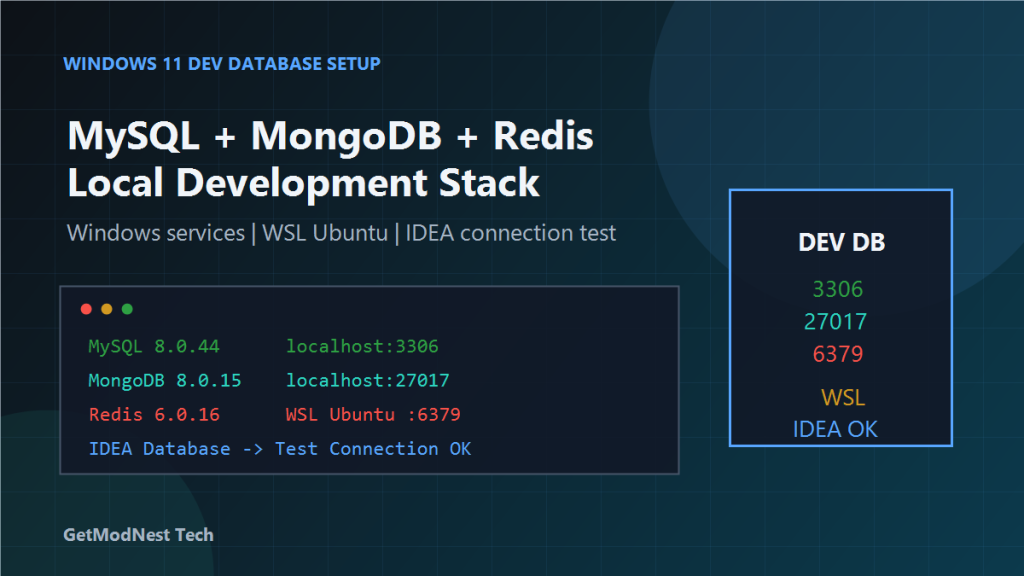
The final environment consisted of MySQL 8.0.44 as a Windows service, MongoDB 8.0.15 as a Windows service, Redis 6.0.16 running in WSL Ubuntu 22.04.5 LTS, and IDEA database connections tested successfully.
The main lesson is that a local development database environment should be verified in layers: service status, port listening, command-line client connection, IDE connection, and application connection.
Testing each layer separately makes database environment issues much easier to locate.
Need Help with a Similar Problem or Project?
This note is based on a real troubleshooting, configuration, or development workflow. If you need help with databases, Linux servers, web applications, desktop software, iOS and Android apps, automation scripts, deployment, or AI development environments, GetModNest can provide practical technical support, troubleshooting, and development assistance.
Email: info@getmodnest.com